Build a weekly schedule with the Time Grid
The Time Grid is where you build the week: place shifts, see who's available, catch double-bookings, and publish so staff get notified.
Admins build the week on the Time Grid by clicking an empty slot, dragging a staffer onto a day, or duplicating a shift card, then assigning someone from a picker that flags them ✓ Available, ⚠ Partial availability, or ✗ Unavailable (conflict). Enmantle hard-blocks double-booking, and the week stays a draft — invisible to staff — until you click Publish.
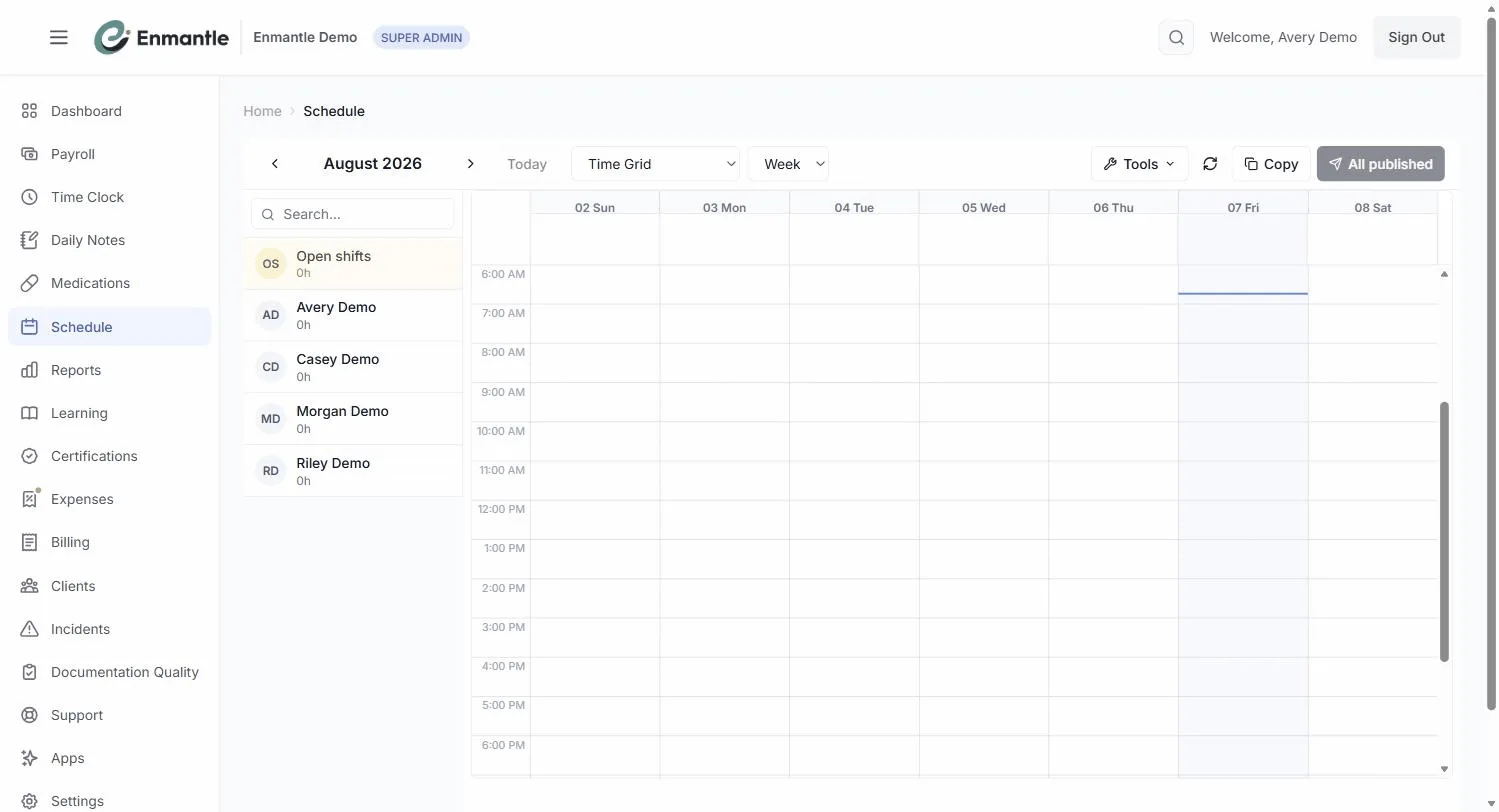
The Time Grid is the week view where you build and manage your schedule. Each row is a person or a home; the grid runs across the days of the week. This guide covers building a week from scratch and getting it in front of your staff.
Read the grid first
Before you place anything, learn to read what's already there. Choose Time Grid from the view-mode dropdown (alongside Week by Location and Week by Employee); the date-range dropdown lets you look at a Day, Week, 2 Weeks, Month, or List. Each scheduled shift shows as a bar in its location's color. Beside it, a separate "actual" bar drawn from clock data shows what really happened: Completed (a solid dark bar) or In progress (a gray dashed bar that grows to now). That side-by-side is how you spot, at a glance, where the plan and reality drifted apart: a late clock-in, a short shift, a no-show. The legend labels these under Actual: — Completed, In progress — plus Open shift.
Place a shift
There's no "Add shift" button. You create a shift in one of three ways:
- Click an empty Time-Grid slot for the day and location you want (admins).
- Drag an employee from the roster on the left onto a day — it drops in at a default
09:00–17:00you can adjust. Duplicatean existing shift card to copy it.
Any of these opens the shift editor — titled New Shift, Edit Shift, or Shift Details — where you set the times and assign a staff member from the picker (see below).
Use the availability picker
When you assign someone, the staff picker doesn't just list everyone — it groups people by whether they can actually work:
✓ Available— free for that window, based on the availability they maintain.⚠ Partial availability— free for part of the window.✗ Unavailable (conflict)— not free.
Staff who work at the same location get a (same location) suffix and sort to the top, so your most natural coverage is right there. Conflicting staff are hidden until you flip the Show staff with conflicts (N) toggle. Availability comes from grids your staff keep up to date — see Staff availability.
Double-booking is blocked
If you try to schedule someone who's already on a shift at that time, Enmantle hard-blocks the conflict with Conflict detected — you can't quietly double-book a person. How an override works depends on your role: Directors, Admins, and Super-Admins auto-override the block; Managers can override with a reason that's written to the audit log. There's no separate reason pop-up in the editor — it's an audit reason or a role-based auto-bypass. (When a recurring shift lands on a conflict, that occurrence is simply skipped.) The block is there to protect you from an honest mistake, not to get in your way.
Publish so staff know
Here's the part people forget: a schedule you've built is still a draft until you publish it. Drafts are yours to rearrange freely. Nothing reaches your staff until you hit Publish (N) — the count tells you how many changes are waiting; once there's nothing left it reads All published. That opens the Publish Schedule modal, where you choose Publish updates only or Publish all visible.
When you publish, everyone affected is notified in-app (a notification titled Schedule Updated) and by email — so "I never saw it" stops being a thing. Build the week, get it right, then publish once.
Rearranging a published week? You can keep editing. Publishing again pushes the updates out the same way.
Next steps: Build a weekly schedule with the Time Grid
- Most weeks repeat. Set up repeating shifts and copy a week forward so you're not rebuilding from zero.
- When someone calls off, convert the shift to open and find coverage fast.
Still stuck?
Email support@enmantle.com — a real person replies.