For DSPs: your first shift — clock in, document, clock out
The three things every shift needs on Enmantle: clock in when you arrive, write your note, and clock out. Here's the whole loop, start to finish.
A DSP's shift has three steps: clock in from the Time Clock when you arrive (a single GPS point confirms you're on site), write a daily note using dictation and Polish with AI, and clock out — where Enmantle prompts Submit your documentation now? first so the note isn't skipped.
If you're a direct support professional (DSP), you'll spend most of your time in Enmantle doing three things: clocking in when you arrive, documenting the support you provided, and clocking out when you leave. This guide walks the whole loop once, so your first shift feels familiar.
You can do all of it from your phone. Enmantle has native iOS and Android apps as well as the web app — use whichever you have installed.
Before you start
Make sure you're logged in and your profile is set up. If you haven't done that yet, see Logging in and setting up your profile first. You'll also want to allow location access when the app asks — Enmantle uses your location only at the moment you clock in and out, never in between. More on that below.
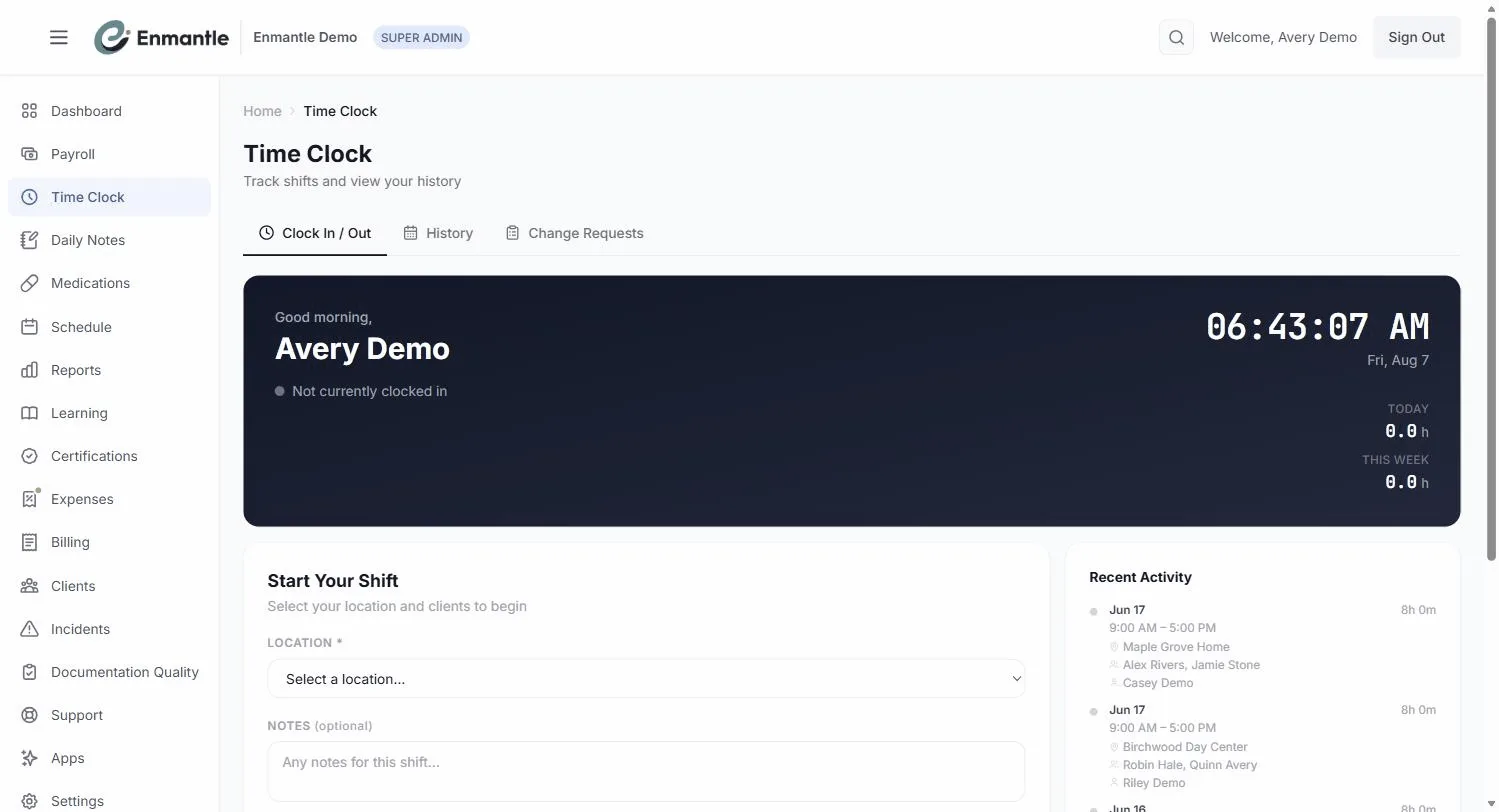
Clock in when you arrive
When your shift is scheduled to begin and you're at the client's home, open Enmantle and clock in.
- Open the app and go to the
Time Clock(theClock In / Outtab). You'll see theStart Your Shiftcard — "Select your location and clients to begin." - Pick your
Location *andClients *. Enmantle figures out the service type from the client, so there's no service dropdown to hunt for. Add aNotes (optional)line if you like. - Tap the green
Clock Inbutton. If prompted, allow location access — Enmantle captures a single GPS point at that moment to confirm you were on site. - You're on the clock. The card becomes
Shift in Progressand the shift timer starts.
That's it. You don't need to keep the app open, and Enmantle is not tracking your location while you work — it only reads GPS at the clock-in and clock-out events. See Clocking in and out with GPS for exactly what's captured.
If your shift includes an on-call window, you don't clock in and out repeatedly. Enmantle switches the shift type automatically at the boundary. See On-site on-call shifts.
Document the support you provided
Somewhere during or near the end of your shift, write your daily note. This is the record of what you did and how the person you support is progressing on their goals.
The fastest way is voice. Tap the note field, dictate what happened in your own words, and use Polish with AI to tidy the wording. The AI only cleans up phrasing — it never invents details, and you stay the author of record. Read it before you save.
- Describe the support you provided in plain language.
- Score the person's ISP goals right inside the note — see Scoring ISP goals inside your notes.
- Add anything notable about the day.
Full walkthrough: Write a daily note with voice dictation and AI polish.
Clock out — and don't skip the note
When your shift ends, find the End Your Shift section on the same tab.
- Add a
Clock-out note (optional)if there's anything to flag. - Tap the red
Clock Outbutton. - Allow location if prompted — again, a single point, captured only now.
Unless the service type needs no documentation, tapping Clock Out first opens a summary dialog — Submit your documentation now? — so you don't leave a note unwritten. This is on purpose: a shift without a note is a billing and compliance gap, and it's much easier to write it now than to reconstruct it tomorrow. Finish the note, then clock out.
If something went wrong with your time
Forgot to clock in? Clocked out an hour late because the client needed you? That's normal, and you don't fix it by guessing. Submit a time-entry change request with the correct times and a short reason. Your manager reviews it, and every change is recorded in an audit trail. See Fixing a time entry.
That's the whole loop
Clock in, document, clock out. Do those three things every shift and everything downstream — EVV, billing, payroll — takes care of itself. When you're ready to go deeper, the Time Clock, GPS & EVV and Documentation & Daily Notes sections cover the details.
Deadlines and definitions above are stated as the rule states them; the rule text on codes.ohio.gov is the authority. Enmantle's own defaults are labelled as defaults.
Still stuck?
Email support@enmantle.com — a real person replies.