Import a client from an Ohio ISP PDF
Upload a standard Ohio DODD ISP PDF and Enmantle drafts the client — person, home, goals, authorizations, and contacts — for you to review first.
Admins (SUPER_ADMIN or ADMIN) upload a standard Ohio DODD ISP PDF, up to 15 MB, text or scanned, and Enmantle drafts the client's identity, address, Service authorizations, ISP goals, and Contacts for review. Fields it's unsure about are highlighted amber. Nothing is saved until you click Create client, so you review and fix before anything goes live.
Setting up a new client by hand is slow, and it's where mistakes creep in. Enmantle can read a standard Ohio DODD ISP (Individual Service Plan) PDF — text or scanned — and draft the client for you: the person, their home, their goals, service authorizations, and contacts — so you review instead of retype. This is the fastest way to onboard a new client, and a clean way to migrate records in from another system.
What you need
A standard Ohio DODD ISP saved as a PDF, up to 15 MB. That's it. It works with an ISP from any source — a text PDF or a scanned/image PDF, which Enmantle runs through OCR — so your existing client records come across without hand-entry. Importing is an admin action (SUPER_ADMIN or ADMIN).
Upload the ISP
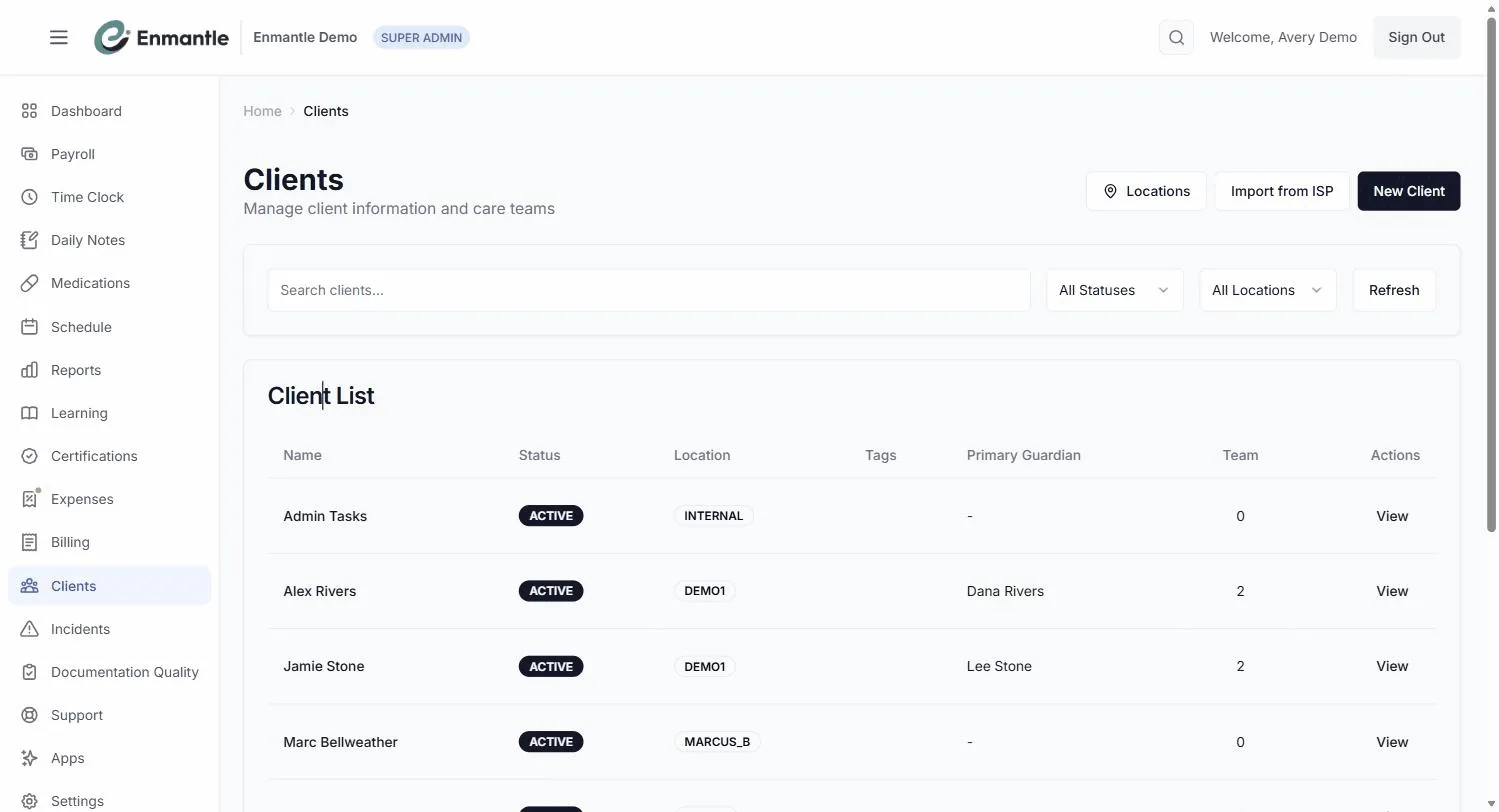
- From your clients list, choose
Import Client from ISP. - In the
Upload Ohio ISP (PDF)zone, click to choose a file — "Click to choose a file (max 15 MB)". It takes a single PDF, up to 15 MB. - Enmantle reads the document off-request. You'll see a spinner: "Reading the ISP and extracting goals… a full plan can take up to a minute. You can leave this tab open." Scanned or image PDFs are run through OCR first.
Enmantle does the reading for you. You don't fill in fields — you check the ones it filled in.
What gets drafted
From one ISP, Enmantle drafts:
- Identity — First and Last name, DOB, Medicaid #, County, and Phone.
- Address — the home or setting where support is delivered.
Service authorizations (N)— the authorized services and units from the plan.ISP goals (N)— ready to be scored inside daily notes later. See Scoring ISP goals inside your notes.Contacts (N)— the people on the care team named in the plan, plus theSSA.- Transportation purposes carried on the plan.
Everything comes from the document. Nothing is invented. One thing it does not set up is PAWS budgets — that's a separate, manual step after the client is created.
Review before anything is saved
This is the important part: everything is a draft until a person confirms it. Enmantle hands you a side-by-side review — the PDF preview on the left, the editable draft on the right.
- Read through each section. Any field Enmantle wasn't sure about is highlighted amber (low confidence), so you know where to look first.
- Fix anything that didn't come across cleanly, and fill any gaps. Each goal, contact, and service-authorization row has an ✕/+ toggle to include or exclude it — non-destructive until you commit.
- For the home, pick
New locationto create one orExisting locationto attach to a home you already have. - Click
Create clientto commit. If Enmantle spots a possible duplicate by Medicaid ID or name, a banner offersUpdate this clientorCreate as new— an update merges into the existing record and never deletes anything.
A PDF is only as clean as the plan it came from. Read the draft the same way you'd proofread a form you typed yourself — the amber highlights and the Create client step are your safety net, on purpose.
Until you click Create client, nothing is live. After that, the client is a full record with a Client 360 page.
Why this matters for migrating
Because Enmantle reads a standard Ohio DODD ISP PDF from any source, you can bring clients over one plan at a time, review each one, and confirm when it's right. Your data is never locked in — you can do a full export any time, with no fees. Migration is staged so EVV and billing never skip a beat. For more on moving over, see Exporting your data and migration support.
Next steps: Import a client from an Ohio ISP PDF
- Learn the client record you just created: The Client 360 page, tab by tab.
- Put those goals to work: Scoring ISP goals inside your notes.
Still stuck?
Email support@enmantle.com — a real person replies.