Build a custom report and schedule it to your inbox
Start from Enmantle's report catalog, build your own in the report builder, save it, and have it emailed on a schedule.
In the report builder, you choose a Data Source, pick Columns, optionally set Group By and Totals, add Filters, and Save Report. Only a saved custom report can be scheduled: set a Cadence (Daily, Weekly, or Monthly), a Report period, Formats (PDF, Excel (.xlsx)), and Recipients, and it emails itself on that rhythm from then on.
Enmantle ships with a catalog of prebuilt reports for the numbers you check most, plus a builder for the ones specific to how your agency runs. This guide covers building your own report and having it land in your inbox on a schedule, so you stop pulling it by hand.
Start in the catalog
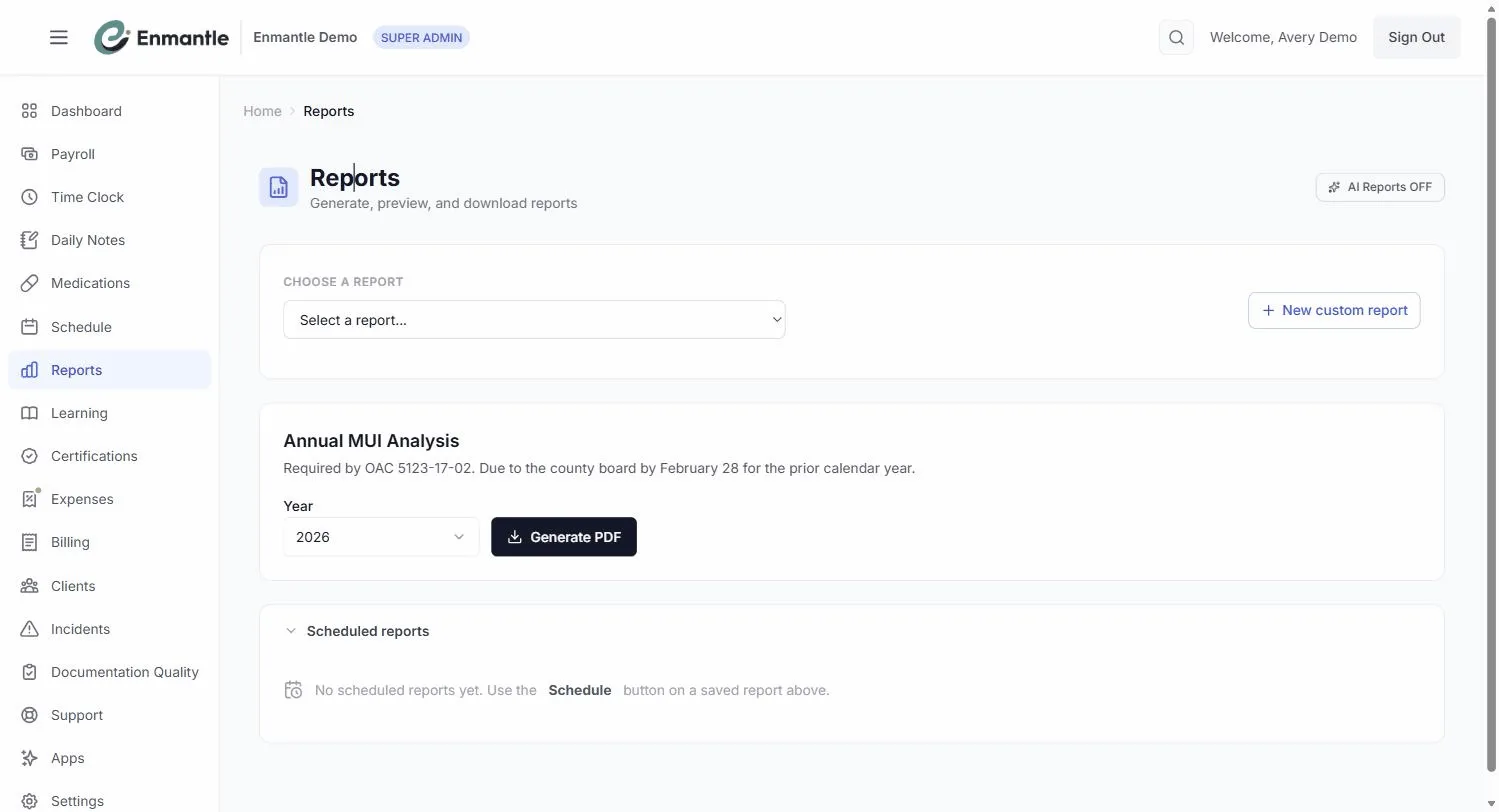
The Reports page opens on a hub. At the top, Your reports shows three cards — Favorites, Recently Run, and Scheduled. Below that, Browse the full catalog: reports are grouped into collapsible category sections (Time & Attendance, Compliance, Billing, Medications, and more), with a Search reports... box across the top.
If a prebuilt report already answers your question, open it, set the Filters, and click View Report — no need to build anything. For the full walkthrough, see Finding and running a report in the catalog. Build a custom report when you need different columns, a narrower slice, or something you'll want emailed on a repeat.
Build a custom report
- On the hub, click
New custom report(Build one from scratch) to open the builder. - Choose a
Data Sourcefrom the dropdown — this sets what the report is built from. - Under
Columns, check the fields you want. Add only what you'll read — a tight report is easier to act on. Drag the column chips to reorder them. - Optionally set
Group Byfor subtotals, andTotals(Sum,Avg,Count,Min, orMax) on numeric fields. - Set the
Filters—Start Date/End Date,Locations,Staff,Clients, and any status pickers. - Watch the live preview on the right to confirm it shows what you expect.
- Enter a
Report Name, setVisibilitytoPrivateorShared, and clickSave Report.
Once saved, the report appears under Custom Reports in the catalog and in your Favorites/Recently Run cards. Tick Show as preset chip on the base report while building if you want it to show as a quick chip on the report it's based on.
To edit a saved report later, click the pencil icon on it under Custom Reports — that reopens the builder with everything prefilled.
Schedule it to your inbox
Scheduling is available on saved custom reports — build and save one first, then set its cadence.
- Find your report under
Custom Reports(or in theScheduledcard) and click the calendar (Schedule this report) icon to open theSchedule reportdialog. - Set the
Cadence—Daily,Weekly, orMonthly. Weekly adds aDay of week; monthly adds aDay of month(1–28). Pick theHour (ET)to send. - Choose the
Report period(Yesterday,Last 7 days,Last 30 days,Last calendar month, orMonth-to-date) and theFormats(PDF,Excel (.xlsx)— at least one). - Add
Recipients(comma-separated emails), tickEmail me toofor a copy, leave itEnabled, and clickSave.
The schedule now shows in the Scheduled card, where you can edit it, toggle it on/off, Send test now, or delete it. From then on, the report arrives on its own cadence — weekly time-clock hours every Monday, an expense summary on the 1st, whatever rhythm matches your review.
Choose the right cadence
Dailyfor anything you act on same-day, like time-clock hours during a busy pay period.Weeklyfor routine review — staff overview, certification status.Monthlyto line up with a reporting cycle or month-end close.
You can save as many reports as you need, each on its own schedule. Build the view once, and let Enmantle deliver it.
Next steps: Custom Reports & Scheduling
- New to the catalog? Start with Finding and running a report in the catalog.
- Need to trace a specific error rather than a summary? Use the audit log to trace documentation errors.
- For the money side end to end, see From clock-ins to a clean eMBS invoice.
Still stuck?
Email support@enmantle.com — a real person replies.