Fixing a time entry: change requests and approvals
Forgot to clock in or out late? Submit a change request with the right times and a reason, a manager approves it, and every edit is kept in an audit trail.
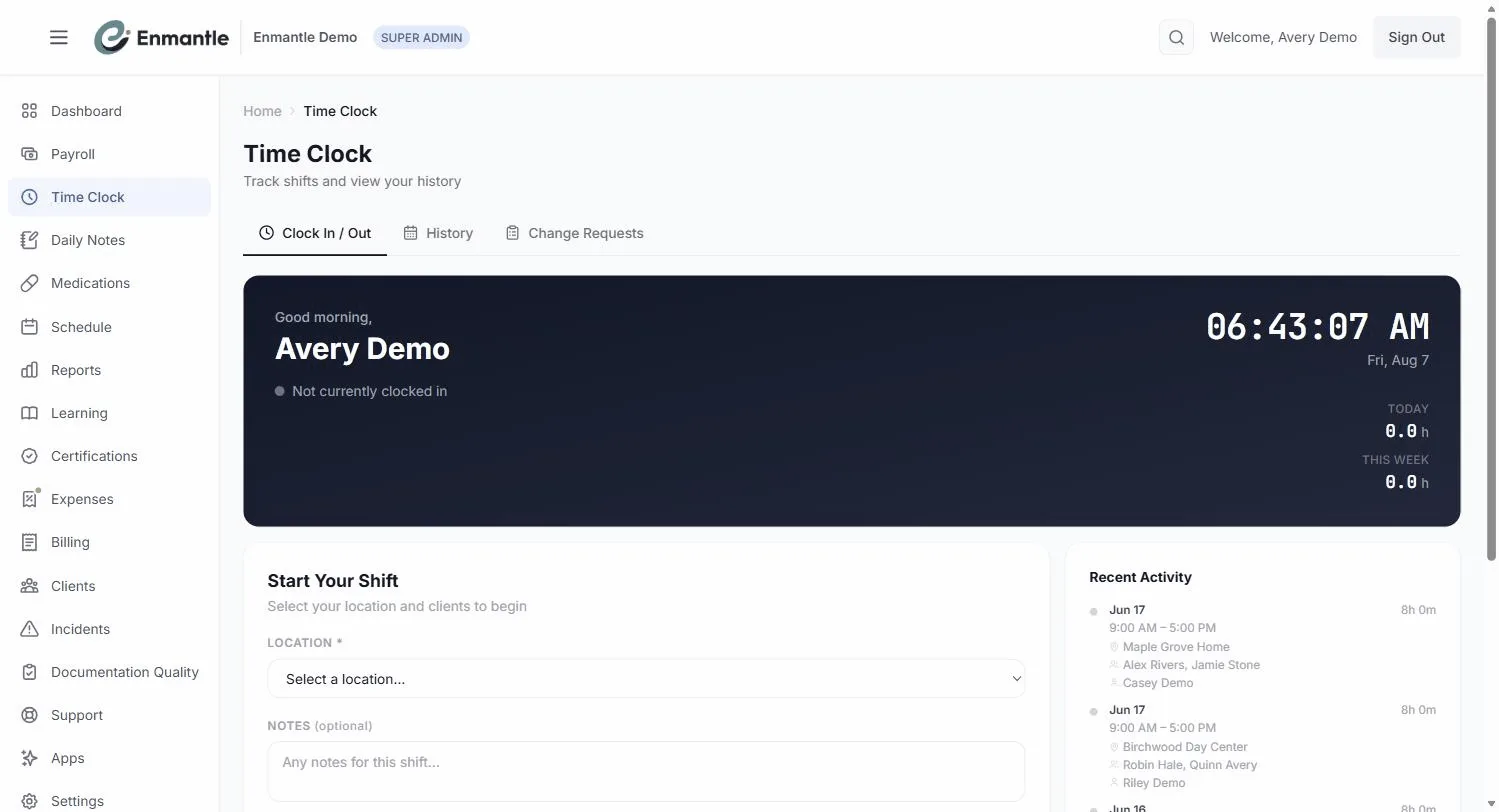
Staff fix a wrong clock time from History in the Time Clock by tapping Request Change and entering the correct times plus a required reason; the request starts Pending. A manager approves or denies it in the Change Requests tab — approvals are blocked inside a locked billing period — and every change is kept in an audit trail.
This article is part of the Enmantle Help Center, in the Time Clock, GPS & EVV section.
Sometimes the clock doesn't match what really happened. You forgot to clock in, or the client needed you and you clocked out late. That's normal. You don't fix it by editing your hours directly or by guessing — you submit a change request, a manager reviews it, and the correction is recorded. This guide walks through both sides.
For staff: submit a change request
When a time entry is wrong, ask for the correction instead of leaving it.
- In the
Time Clock, open theHistorytab and find the shift with the wrong time. - Tap
Request Change. This opens theRequest Changedialog. (Anyone can do this — it's available to every role.) - Enter the correct clock-in and/or clock-out time.
- Add a reason — a reason is required for all change requests, so say what happened and why the time is off (for example, "forgot to clock in, arrived 8:00 AM").
- Tap
Submit Request.
Be accurate and specific. The reason is what your manager relies on to approve the change quickly, and it stays attached to the record. Your request starts as Pending.
For managers: review and approve
Change requests come to a manager for review — corrections don't apply on their own.
- Open the
Change Requeststab in theTime Clockand pick aPendingrequest. This opens theReview Change Requestdialog. - Compare the requested times against the reason and what you know about the shift. You can override the times, location, clients, and notes right in the dialog before you decide.
- Choose
Approve & Applyto apply the corrected times (the request becomesApproved), orDenyif something doesn't add up (it becomesDenied). Either way the staff member gets an email on your decision.
One limit to know: approvals are blocked inside a locked billing period. If the shift falls in a period that's already been locked, you won't be able to apply the change until it's reopened.
Because a person reviews every change, staff can't quietly rewrite their own hours. That protects the integrity of your time data — which matters, since the clock is what feeds EVV and billing. See Clocking in and out with GPS.
Every change is kept in an audit trail
Nothing about a correction is silent. Every change request — what was asked for, the reason, who approved it, and when — is recorded in an audit trail.
That means you can always answer the question "why does this time say what it says?" long after the shift. The original clock event and the correction both live in the record, so there's a clear, reviewable history instead of an unexplained edit.
An approved change doesn't erase the original — it's logged alongside it. The audit trail shows the full story, which is exactly what you want if a payer or auditor ever asks.
For how to read that history and trace what happened, see the audit log.
Why this matters
- Accuracy — the corrected times are the ones that flow to EVV and payroll.
- Accountability — a manager signs off on every change.
- Traceability — the audit trail keeps a permanent, reviewable record.
Related
- Understand what the clock captures in the first place: Clocking in and out with GPS.
- Trace a correction end to end in the audit log.
Deadlines and definitions above are stated as the rule states them; the rule text on codes.ohio.gov is the authority. Enmantle's own defaults are labelled as defaults.
Still stuck?
Email support@enmantle.com — a real person replies.