Repeating shifts, and copying a week forward
Most coverage repeats. Set shifts to recur daily, weekly, biweekly, or monthly, choose what an edit touches, and copy a whole week forward.
Most weeks look a lot like the week before. Instead of placing the same shifts over and over, you can set a shift to repeat, and you can copy an entire week forward in one move. This guide covers both.
Make a shift repeat
When you create or open a shift on the Time Grid, you can turn it into a recurring shift instead of a one-off.
- Open the shift you want to repeat.
- Tick the
Repeat this shiftcheckbox in the editor. - Choose the frequency:
- Daily — every day. - Weekly — the same day each week. - Bi-weekly — every other week. - Monthly — once a month.
- Set when it ends:
For [N] occurrencesorUntil [date]. - Save.
From then on, the shift places itself on every matching day, so a Monday morning shift at one home shows up every Monday without you rebuilding it. (If a generated occurrence would collide with an existing shift, that one occurrence is silently skipped.)
Choose what your edit changes
Here's the part that trips people up. When you edit a shift that repeats, Enmantle asks how far the change should reach. This matters — a small choice here is the difference between fixing one day and rewriting the whole series.
A scope dialog opens and you pick one of three:
This shift only— change only this one occurrence. Use it for a one-time change: a later start on a single day, a different person just for Thursday.This and future shifts— change this occurrence and every one after it, leaving past shifts alone. Use it when something changes going forward, like a new standing start time.All shifts in series— change every occurrence in the series, past and future.
When in doubt, pick This shift only. It's the safest — you can only affect the day in front of you, never the whole series by accident.
Copy a whole week forward
Recurring shifts handle the shifts that truly repeat. But sometimes you just want next week to start as a copy of this week — same people, same homes, same times — and then adjust from there. Copying a week does exactly that.
- Open the
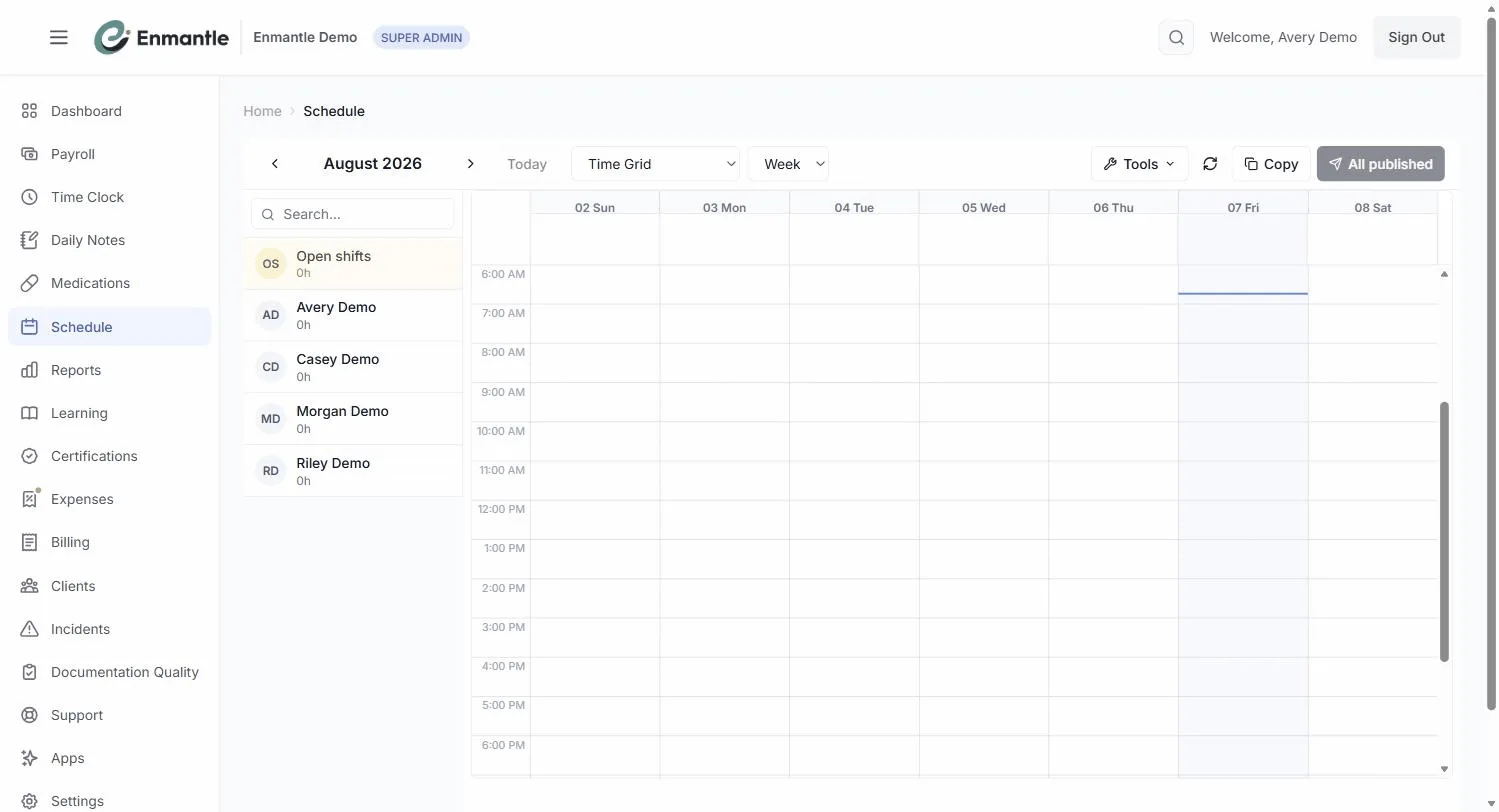
Copymenu in the toolbar. - Choose the move you want:
- Copy previous week → here — pull last week's shifts into the week you're viewing. - Copy this week → next — push the current week onto the next one. - Copy this week to: + a date — copy into any week you name.
- Enmantle fills the target week and shows a toast like "Copied 12 shifts, skipped 2 (conflicts)" — conflicting shifts are left out so nothing double-books.
- Adjust anything that's different — a substitution here, a time change there.
This is the fastest way to build a schedule when your coverage is stable but not identical enough to leave entirely on recurrence. Copy, tweak, publish.
Copied and repeating shifts are still drafts
Copying a week or adding recurring shifts does not notify anyone on its own. Everything you place is a draft until you publish it, exactly like a schedule you built by hand. Get the week right, then hit Publish, and your staff are notified in-app and by email. See Build a weekly schedule with the Time Grid for how publishing works.
Next steps: Repeating Shifts & Copying a Week
- When someone can't work a repeating shift, convert it to open and find coverage.
- Recurring shifts respect the picker tiers built from staff availability, so you're always placing people who can actually work.
Still stuck?
Email support@enmantle.com — a real person replies.