Handle a call-off: open shifts and finding coverage
Someone can't work. Convert the shift to open, let eligible staff claim it from their phones, or assign coverage in one click — with staff notified.
When someone calls off, the shift can be converted to Open so eligible staff at that location Claim it from their phone (first claim wins), or assigned directly from the Coverage Requests dashboard by clicking Assign next to an available staffer. Either path notifies the covering staffer in-app and by email; staff can also request coverage ahead of time.
A shift is covered until it isn't. When someone calls off, you need coverage fast and you need a record of how it got filled. Enmantle gives you two paths: open the shift so eligible staff can grab it, or assign someone yourself in one click.
Convert the shift to Open
When a scheduled person can't work, you don't delete the shift — you open it up.
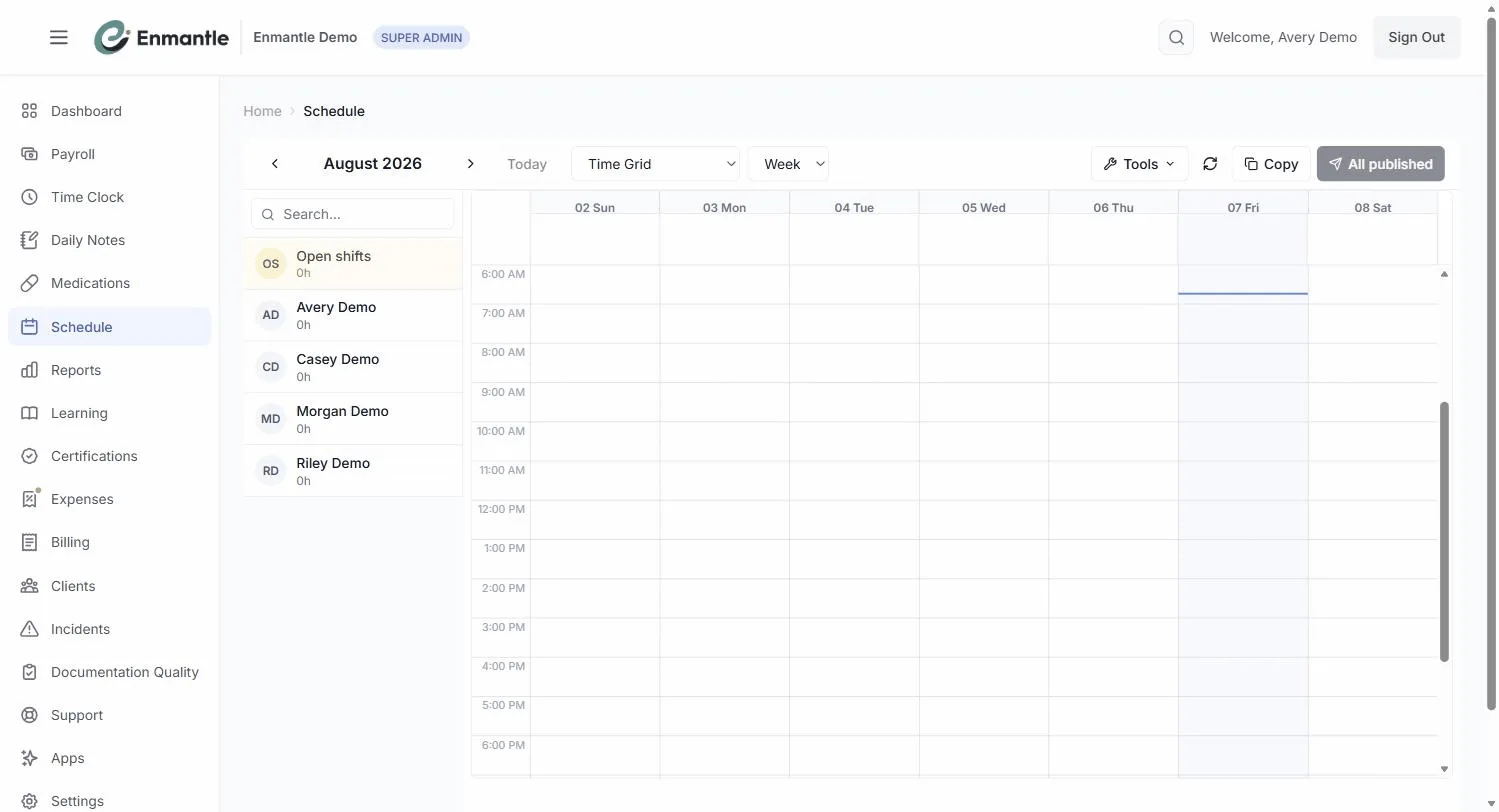
- Open the shift on the Time Grid.
- In the editor, click
Open. You'll see "Shift converted to open," and theOpen shift (no employee assigned)toggle turns on. - The shift is now unassigned and visible to eligible staff at that location.
The shift stays on your grid the whole time, so nothing falls through the cracks while you wait for it to fill.
Eligible staff claim it from their phones
Once a shift is Open, the eligible staff at that location see it and can claim it right from their phone via the mobile app — no phone tree, no group text. They tap Claim and confirm in the Claim this shift? dialog. The people best positioned to cover are the ones who get the chance first.
A few things worth knowing:
- Only eligible staff at that location see the open shift, so you're not broadcasting to people who can't help.
- If two people claim the same shift, the first claim wins cleanly — the second person sees "Shift was already claimed by another staff member." No double-booking, no awkward walk-back.
- You can require approval on claims with the
Requires manager approval to claimtoggle, so a shift isn't final until you say so. When it's on, staff see aRequest this shift?dialog instead of an instant claim. This is optional — leave it off and claims are instant.
When a claim goes through, the assignment notification goes out in-app and by email, so everyone knows who's working.
Assign coverage yourself in one click
You don't have to wait for someone to claim it. When a call-off comes in, it lands on the Coverage Requests dashboard, and you can assign from your available staff in one click.
- Open the
Coverage Requestsdashboard. - Enmantle recommends staff who are available for that window, drawn from the availability grids they keep.
- Click
Assignnext to the person you want. - They're notified in-app and by email. (Escalation and assignment notifications are in-app plus email only — never SMS.)
Because the list is already filtered to who's actually free, you're not guessing or cross-checking calendars. See Staff availability for how that list is built.
The staff picker tiers people Available, Partially available, and Unavailable, with same-home staff first — so your most natural coverage is right at the top.
When staff know ahead of time
A call-off isn't always last-minute. When a staff member knows in advance they can't work a shift, they can submit a coverage request instead of leaving you to find out the hard way.
- The staff member taps
Request Coverageon the shift they can't work. Its card now shows aNEEDS COVERAGEflag, and other eligible staff get aPick Upaction. - It lands on your
Coverage Requestsdashboard. - You can let others
Pick Upthe shift, orAssignsomeone available in one click — the same two paths as above.
Coverage requests turn a scramble into a heads-up. The earlier a request lands, the more calmly you can fill it.
Next steps: Handling Call-Offs & Coverage
- Keep your staff availability current so the one-click assign list is always accurate.
- For overnight and on-call coverage, see On-site on-call shifts.
Still stuck?
Email support@enmantle.com — a real person replies.