Staff availability: how staff set it, how the schedule uses it
Staff keep their own availability grid; the scheduler reads it to tier the picker as Available, Partially, or Unavailable and put same-home staff first.
This article is part of the Enmantle Help Center, in the Scheduling & Coverage section.
Availability is the quiet engine behind good scheduling. When staff keep it current, the person building the week always sees who can actually work — no phone calls, no guessing. This guide covers both sides: how a staff member sets their availability, and how the schedule uses it.
To be clear up front: this is availability, not time off. You're telling the schedule the hours you're generally free to work, so the right shifts come your way. It's a standing picture you keep accurate, not a request you submit each time.
Need a specific day off — a vacation or an appointment? That's a separate feature now: see Requesting time off. Availability is your standing weekly pattern; time off is a dated request your manager approves. Keep the two straight and each does its job.
For staff: keep your availability grid current
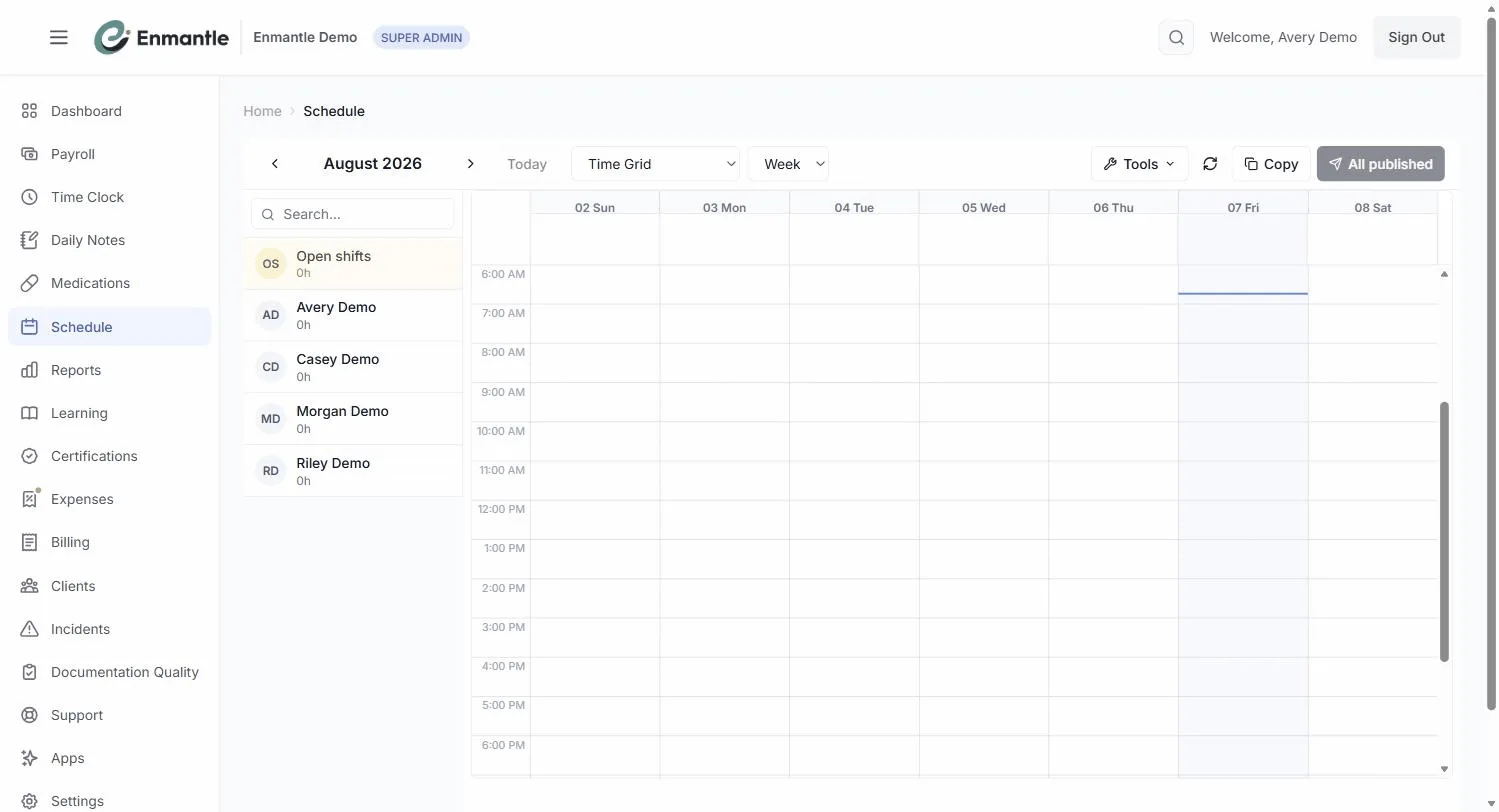
Every staff member has their own availability grid — a simple week-shaped view where you mark when you can and can't work.
- From the schedule's
Toolsmenu, openMy Availability. - Mark the windows you're free to work.
- Mark the windows you're not.
- Save.
Managers have a matching Team Availability view (also under Tools) that shows everyone's grids side by side.
Keep it honest and keep it current. The grid is the single source your scheduler reads, so if your Tuesday evenings open up, update the grid and those shifts start finding you. If something changes, edit it — this is meant to be adjusted as your life does.
Set your availability once, then update it when things change. You don't re-submit it every week — it stays in place until you edit it.
For schedulers: how the grid feeds the picker
When you assign someone on the Time Grid, the staff picker doesn't dump a flat list of names on you. It reads everyone's availability grid and tiers each person for the exact window you're filling:
- Available — free for the whole shift window.
- Partially available — free for part of the window.
- Unavailable — not free for it.
That means the people at the top of your picker are the people who can genuinely work, and you can see at a glance who's a stretch before you ask.
Same-home staff come first
On top of the tiers, staff who already work at the same home are listed first. Your most natural coverage — someone who knows the home and the person you support — is right at the top, above equally available people from elsewhere. It's a small ordering choice that saves real time.
Where availability pays off
Availability isn't just for building the week from scratch. It works hardest when things change:
- When you handle a call-off, the one-click assign list is drawn straight from these grids — so you're only ever offered staff who are free.
- When you set up repeating shifts, the picker still tiers people by availability, so recurring coverage stays realistic.
The rule of thumb is simple: the more current your team keeps their grids, the less time you spend chasing coverage. Availability entered once, by the person who knows their own schedule best, quietly powers every assignment after it.
Next steps: Setting Staff Availability
- Learn how the tiers show up while building a week in Build a weekly schedule with the Time Grid.
- See availability in action during a call-off.
Still stuck?
Email support@enmantle.com — a real person replies.