Direct support professional scheduling software, built for the week you actually run.
The Time Grid is where an Ohio IDD or home-care agency builds its week: place shifts, see who's actually available, and publish so staff are notified. Repeating shifts, call-off coverage, time-off requests, and On-Site On-Call round out the rest — all in the same schedule direct support professionals (DSPs) work from every day.
Last reviewed · Enmantle team
What does the Time Grid do?
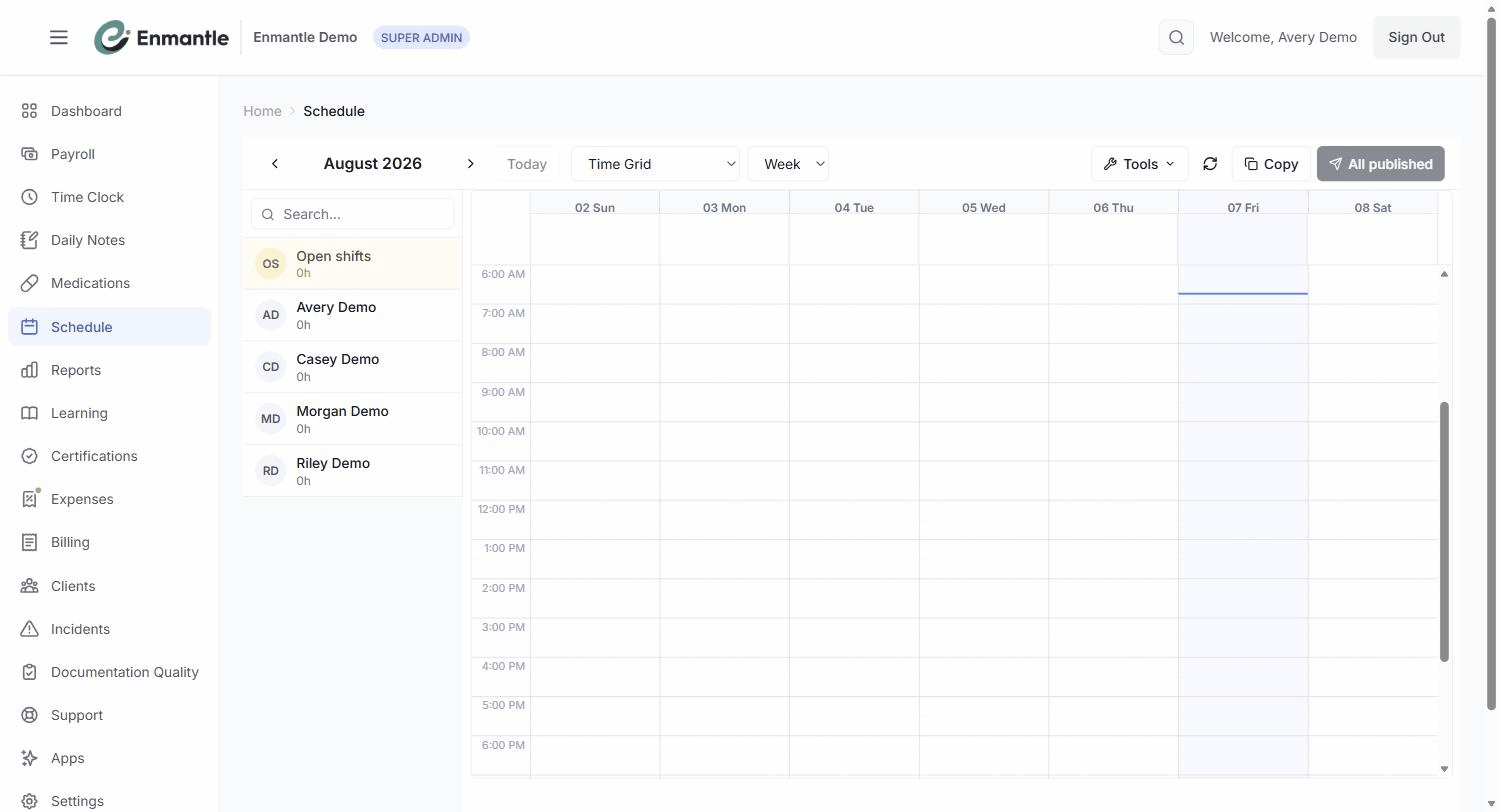
The Time Grid is Enmantle's week view for building a schedule: each row is a person or a home, each column a day, and every scheduled shift shows as a bar next to an "actual" bar drawn from real clock data — so you see the plan and what actually happened side by side, at a glance.
Choose Time Grid from the view-mode dropdown, and pick a Day, Week, or Month range. There's no "Add shift" button — you build the week by clicking an empty slot, dragging a staff member from the roster onto a day, or duplicating an existing shift card.
The picker doesn't just list names. It tiers people by whether they can actually work the window — ✓ Available, ⚠ Partial availability, or ✗ Unavailable (conflict) — drawing on the availability grids staff keep current, with same-location staff sorted to the top. If you try to schedule someone already on a shift at that time, Enmantle hard-blocks it with Conflict detected; the override follows your role, or a Manager can override with a reason that's written to the audit log.
A schedule you build stays a draft until you publish it. Nothing reaches staff until you hit Publish (N), and when you do, everyone affected is notified in-app and by email — never SMS.
How do repeating shifts and copying a week work?
Most weeks look like the week before, so you don't rebuild them from scratch. A shift can repeat daily, weekly, bi-weekly, or monthly, and a whole week can be copied forward into the next one, or into any week you name.
When you edit a shift that repeats, Enmantle asks how far the change should reach: This shift only, This and future shifts, or All shifts in series — so a one-time change never accidentally rewrites the whole pattern. Copying a week pulls last week's shifts (or pushes this week's) into a target week and reports what copied and what was skipped for a conflict, so nothing double-books silently.
How do call-offs and time off work?
When someone can't work, you convert the shift to Open rather than deleting it. Eligible staff at that location can claim it from their phone — first claim wins — or you assign coverage yourself from the Coverage Requests dashboard, which recommends people who are actually available.
A staff member can also flag a call-off ahead of time with Request Coverage, which lands it on the same Coverage Requests dashboard. Separately, staff request planned time off with a date range and an optional reason; it moves through Pending, Approved, Denied, or Cancelled, and a manager other than the requester has to decide. A pending request only surfaces as a soft warning if someone tries to schedule that person; an approved one hard-blocks the assignment and shows as a rose-striped Time off band right on the Time Grid.
How does On-Site On-Call (OSOC) work?
On-call hours belong to a location, not a client or a worker. An admin sets an On-Call Start Time and On-Call End Time — the default is 22:00 to 06:00 — and any shift crossing that boundary splits into Regular and On-Call segments automatically.
A direct support professional (DSP) working one of these shifts clocks in once and clocks out once; the split happens in the background, with no extra taps. Adding or removing a client mid-shift creates the same kind of clean split, closing one segment and opening the next without interrupting the shift. See EVV app with GPS for Ohio DODD for what happens at those clock events.
How it works in Ohio
Ohio's EVV rules require six data elements on every subject visit: the service, the individual, the date, the location, the worker, and the start and end time. Scheduling is where that record starts — the Time Grid already knows the worker, client, location, and planned time before the shift begins. Enmantle is a DODD-approved alternate EVV vendor and submits directly to Sandata, so the shift a scheduler builds becomes the same visit that verifies through EVV and, from there, the same line that bills. On-call coverage is configured per location (On-Site On-Call, or OSOC) rather than per client or per worker.
A day with it
Monday morning, a scheduler opens the Time Grid for the week ahead. Most of it fills in fast: recurring shifts from prior weeks are already sitting there, and copying last week forward covers the rest. For the handful of open slots, the scheduler drags staff from the roster — the picker shows who's actually available — and the hard block catches an accidental double-booking before it happens. By Monday afternoon, the week is a draft; Publish (N) sends it out, and every affected DSP gets an in-app and email notification.
Wednesday morning, someone calls off. The scheduler opens their shift, taps Open, and it's visible to eligible staff at that home within minutes; a DSP claims it from their phone before lunch. Thursday, a Time Off Requests badge shows two pending requests — one clears easily, the other still has scheduled shifts to reassign first. Overnight, a location with OSOC turned on splits a DSP's shift into Regular and On-Call segments on its own; nobody clocks in twice.
Screens
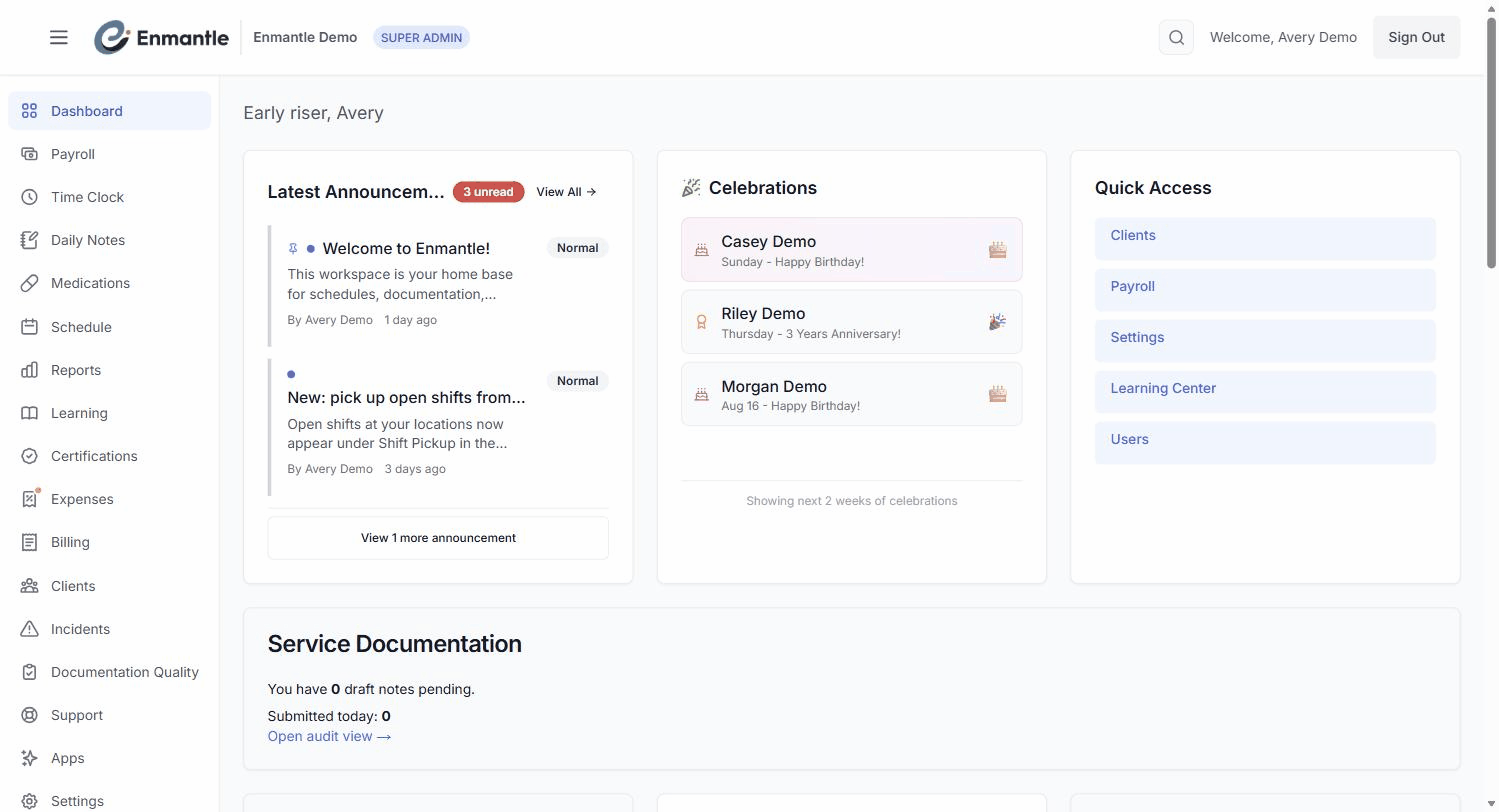
Frequently asked questions.
Does Enmantle auto-generate the schedule for us?
How do staff find out about a published schedule or a call-off?
Schedule Updated notification; an open shift is visible to eligible staff at that location the moment it's converted, and a claimed shift or an assigned call-off notifies the staff member the same way.Can two people be scheduled for the same slot by mistake?
Conflict detected the moment you try to assign someone who's already on a shift at that time. Directors, Admins, and Super-Admins can auto-override it; a Manager can override with a reason, which is written to the audit log — so it's prevented by default, not just flagged after the fact.Is on-call set up per client, or per staff member?
Does approved time off block someone from being scheduled?
- Build a weekly schedule with the Time GridThe Time Grid is where you build the week: place shifts, see who's available, catch double-bookings, and publish so staff get notified.
- Repeating shifts, and copying a week forwardMost coverage repeats. Set shifts to recur daily, weekly, biweekly, or monthly, choose what an edit touches, and copy a whole week forward.
- Handle a call-off: open shifts and finding coverageSomeone can't work. Convert the shift to open, let eligible staff claim it from their phones, or assign coverage in one click — with staff notified.
- Staff availability: how staff set it, how the schedule uses itStaff keep their own availability grid; the scheduler reads it to tier the picker as Available, Partially, or Unavailable and put same-home staff first.
- Requesting time offAsk for days off right from the schedule. Pick your dates, add a reason, and submit — your manager reviews it, and approved time off keeps you off the schedule.
- On-site on-call shifts that switch automaticallyOn-call windows are set per location, and Enmantle splits the shift at the boundary — so you clock in once and let the schedule do the rest.
— See it on your workflow —
See your week on the Time Grid.
A 30-minute demo builds a real week on the Time Grid, mapped to your locations, availability, and on-call hours.